

You download a document you were expecting, then a small browser notification offers an easy choice: open it now. That shortcut is convenient—and it is also where rushed decisions happen. A file may have an unclear name, an unexpected format, or a source that does not match what you thought you clicked.
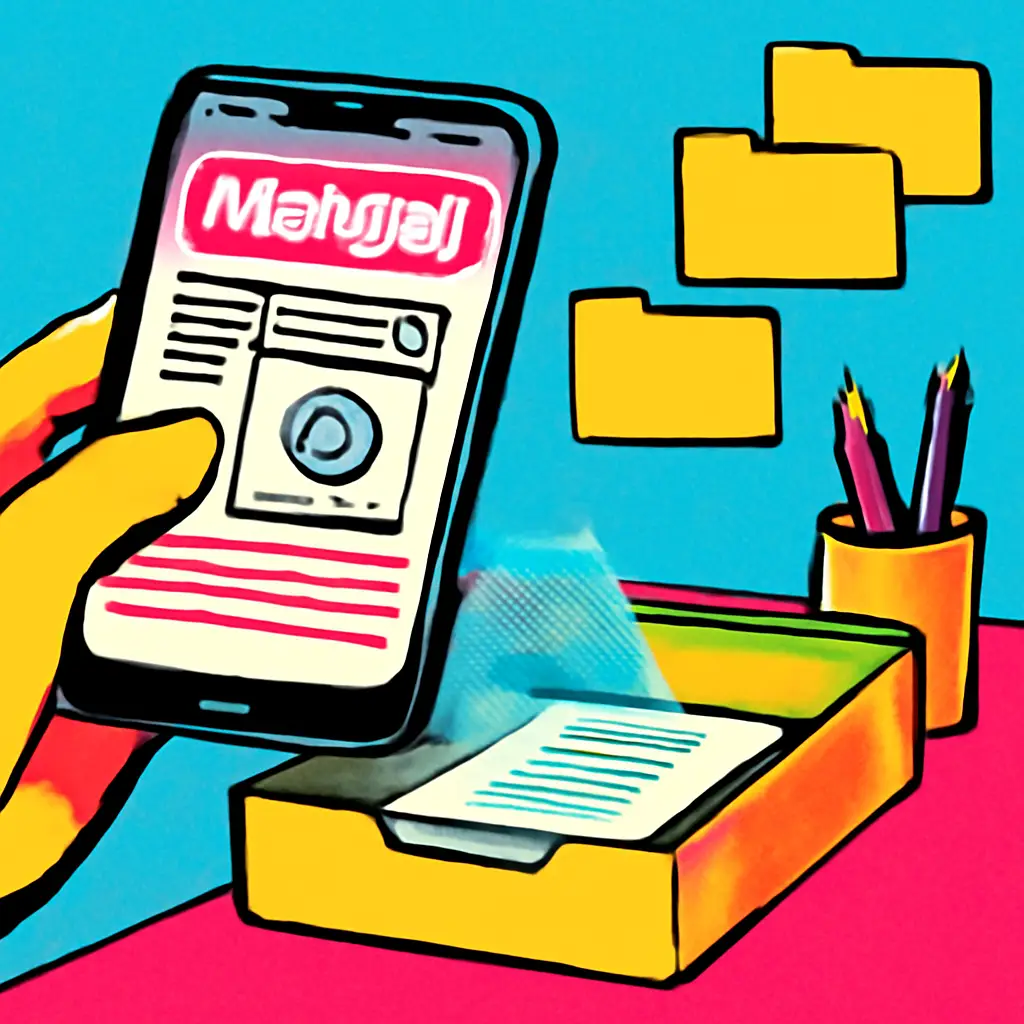
A useful middle step is to treat your browser’s Downloads page as a checkpoint. Instead of opening files directly from a disappearing notification or download bar, save first, review the download in one place, and open it only when its name, source, and purpose line up. This takes seconds for ordinary documents and gives you a calmer way to handle the occasional odd download.
Why the moment after a download is easy to mishandle
Download prompts encourage speed. You may be trying to retrieve a receipt, join a meeting, read a form, or get back to work. The browser often puts the newest file closest to your cursor, while the details that would help you assess it are easy to skip.
Files can also be misleading without being obviously dramatic. A page may offer a file with a vague label such as document or download. An attachment’s filename may not match the service that sent it. Or you may have clicked a button on a page crowded with advertisements and are not fully sure which button initiated the download.
The Downloads page, usually reached from your browser menu or a downloads icon, creates a small pause. It typically keeps recent downloads together and lets you reveal a file in its folder. Depending on the browser and its settings, it may also show where a file came from or offer an option to copy the download link. The exact labels vary, but the habit does not: review before opening.
A downloaded file deserves the same quick reality check as an unfamiliar package: who sent it, what is it supposed to be, and were you expecting it now?
Build a “save, check, then open” routine
This is not a rule that every file is dangerous. It is a way to avoid letting urgency make the decision for you. Use the routine especially for files that came from email links, search results, pop-up messages, file-sharing links, or unfamiliar websites.
- Let the file finish downloading without opening it from the pop-up. If your browser offers a choice between opening and saving, choose saving when you have any uncertainty. If it downloads automatically, leave it unopened for the moment.
- Go to the browser’s Downloads page. Find the most recent item. Checking there helps distinguish the file you intended to download from a second item that may have started at the same time.
- Read the full filename, including the ending. The portion after the final dot indicates the file type. A meeting handout might reasonably be a PDF; a photo might be an image file. A filename that is chopped off in a notification becomes easier to inspect here.
- Match the file to the task that prompted it. Ask what you expected to receive. If you clicked to download a bank statement, a file called statement.pdf is more coherent than one called update with an unfamiliar file ending. The name alone does not prove safety, but a mismatch is a reason to stop.
- Check the apparent source when your browser makes it available. Does the site or web address look like the organization or person you meant to use? A file obtained from a search result or an ad deserves more scrutiny than one downloaded after signing into a familiar account through your usual route.
- Reveal the file in its folder before opening it. This makes the file a deliberate object rather than a fleeting browser action. You can see whether it landed alongside other downloads, rename it clearly, or remove it if it is not what you expected.
Know the file endings that call for a pause
You do not need to memorize every format. The goal is to notice when the format does not fit the job.
Documents, images, and media commonly have endings such as .pdf, .txt, .jpg, .png, .mp3, or .mp4. They can still contain unwanted material or lead to confusing prompts, so “common” is not the same as “automatically safe.” But these endings usually make sense for the kinds of files they describe.
Be more deliberate with files intended to run software or alter your device. Depending on your computer, these may include endings such as .exe, .msi, .dmg, .pkg, .app, .bat, or .cmd. Installation files are sometimes legitimate—for example, when you intentionally get software from its official provider—but they should never be a surprise disguised as a document.
Compressed archives such as .zip can be useful bundles of photos or project files. They can also hide their contents until you extract them. If an archive was unexpected, do not treat it as a harmless document just because its name sounds familiar.
Watch for names designed to be skimmed
Some filenames exploit a quick glance. A name such as invoice.pdf.exe is an executable file, not a PDF, because the final ending determines the type. On some systems, extensions may be hidden in ordinary folder views, which makes reviewing the name in the Downloads page especially helpful.
Odd spelling, extra dots, generic terms, or a name that does not correspond to the sender are not proof of a problem. They are signals to verify through a separate route. Return to the service’s official site by typing its address or using a saved bookmark, sign in there if appropriate, and look for the document again. For a file supposedly sent by someone you know, ask them through a contact method you already trust.
Use context, not just the browser’s warnings
Browsers and operating systems may flag some downloads as suspicious, potentially unwanted, or unusual. Take those messages seriously. Do not bypass a warning merely because you recognize a company name in the filename or because you are in a hurry.
At the same time, an absence of a warning is not a personal guarantee. Automated checks cannot know whether a file makes sense for your situation. Your own context is valuable: Were you expecting this exact type of file? Did you initiate the download from the place you intended? Does the file have a clear purpose?
This is why the Downloads page works best as part of a short decision sequence rather than as a technical test. It helps you spot a mismatch before the file is opened, installed, or forwarded to someone else.
A realistic example: the “view document” button
Imagine you receive a message saying a shared document needs your review. You click a button and the browser downloads a file immediately. Rather than opening it from the corner notification, you open the Downloads page.
The file is named Document_Review.zip. That does not match your expectation of a shared online document, and the source shown by the browser is not a service you normally use for collaboration. The sensible next move is not to extract the archive to see what is inside. It is to close the download, delete it if you do not need it, and contact the sender through an existing conversation or visit the known service directly.
In a different case, you might download a clearly named April-receipt.pdf after selecting “Download receipt” while signed into a store account you recognize. You can still review it in the Downloads page, then open it with a clear understanding of why it is there. The point is proportional attention, not turning routine paperwork into a stressful investigation.
Keep the Downloads folder useful instead of letting it become a junk drawer
The browser’s Downloads page is most useful while the event is still fresh. After you have opened a file you wanted, move it to the project folder where it belongs and give it a meaningful name if necessary. Delete duplicate installers, unwanted attachments, and files you do not recognize.
This cleanup has a practical benefit: when you reveal a new file in your Downloads folder, it is easier to tell what just arrived. It also reduces the chance of reopening an old, similarly named file later by mistake.
Avoid a common overcorrection: do not keep every download forever “just in case.” Keep the documents you genuinely need in a folder organized by project, person, or year. The Downloads folder can remain a temporary landing area rather than a long-term archive.
What this habit cannot do
A sensible filename, familiar-looking source, or browser warning status cannot establish that a file is safe. Conversely, a legitimate file can have an awkward name or arrive in an archive because of how it was prepared. When the stakes are high or the file is unexpected, verify independently instead of trying to infer certainty from a filename.
This habit also cannot repair a file that has already been opened or installed. Its value is prevention: creating a decision point before an unclear download becomes an action.
Make the checkpoint automatic
For the next three downloads that are not obviously routine, resist the notification’s “open” shortcut. Go to your browser’s Downloads page, read the full filename and its ending, then reveal the file in its folder before opening it. A few repetitions are usually enough to make that brief pause feel like part of downloading rather than an extra chore.







Ad